
Email Finder locates professional email addresses using full name and domain combinations. The system validates each result and assigns confidence scores to measure accuracy.
When to Use Each Method: #
Individual Email Finder: Single contact lookups, prospect research, testing domain patterns
Bulk Email Finder: Database enrichment campaigns, large-scale prospecting, CRM data completion, multi-contact processing
Individual Email Finder #
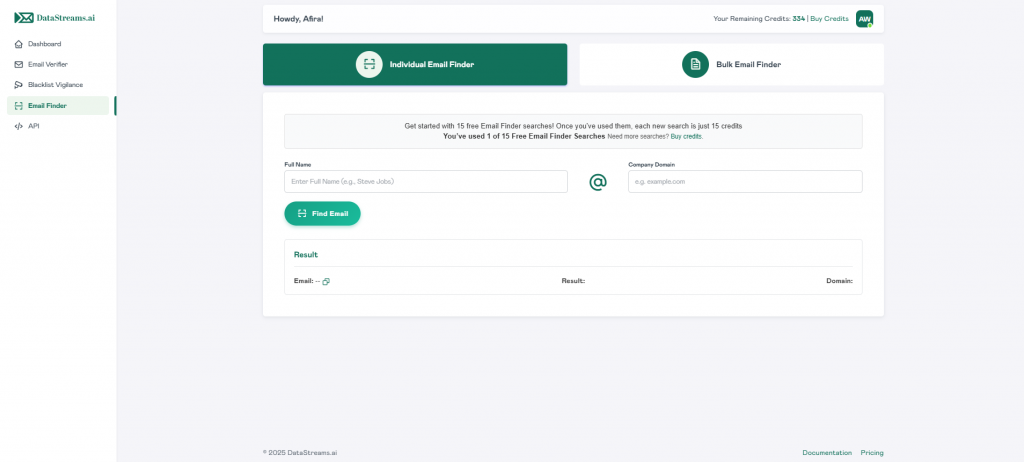
- Navigate to the dashboard and locate “Individual Email Finder” or select it from the Email Finder sidebar.
- Enter the full name in the “Enter Full Name” field (e.g., Michael Johnson, Sarah Williams).
- Enter the company domain in the “Company Domain” field (e.g., example.com, company.io).
- Click “Find Email” to start the search.
- Credit Usage: 15 credits per discovered email
- Processing Time: Real-time results (2-5 seconds)
- Free Searches: 15 complimentary searches included with new accounts
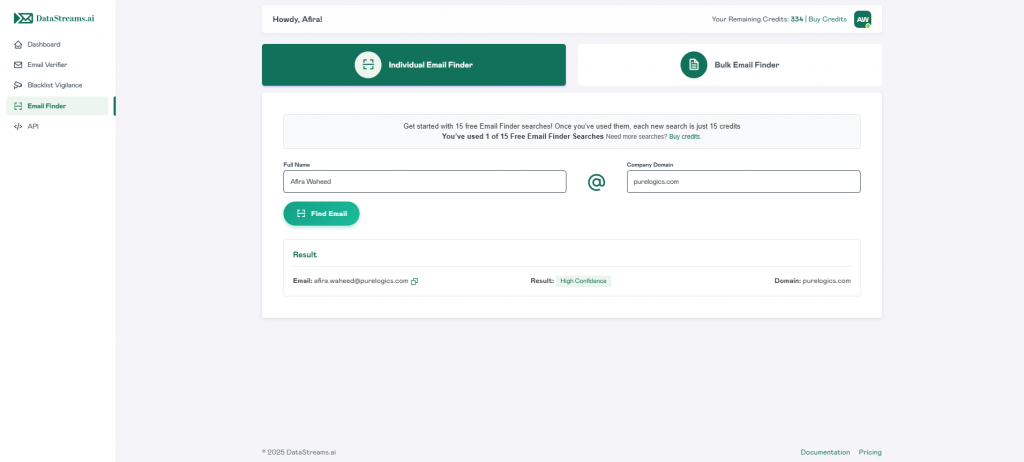
- View the search results displayed below, showing the discovered email address with verification status and confidence level.
Bulk Email Finder #
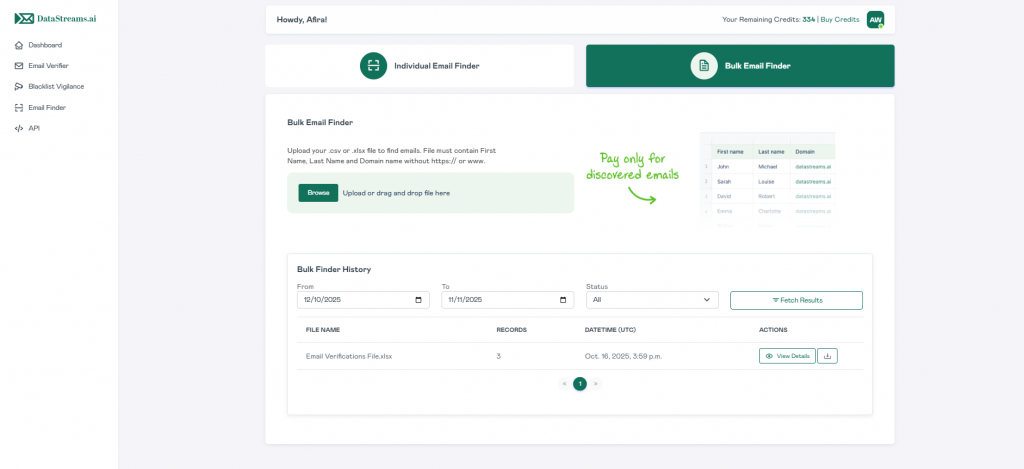
- Select “Bulk Email Finder” from the “Email Finder” sidebar or directly through the Dashboard.
- Prepare your file with the following specifications:
- Supported formats: .csv, .xlsx
- Required columns: First Name, Last Name, Domain
- Domain format: Plain domain only (no https://, www., or additional paths)
- Click “Browse” and select your prepared file.
- Click “Upload File” and a dialogue box will appear for column mapping.
- Review the mapping dialog that displays your file’s first few rows for verification.
- Map your columns using the dropdown menus:
- First Name column to “First Name”
- Last Name column to “Last Name”
- Domain column to “Domain”
- Verify the record count displayed in the upload dialogue.
- Click “Find Now” to begin processing.
- Monitor progress via the real-time progress bar.
- Once processing completes, click “View Details” for quick results in the “Bulk Finder History section” or click the download icon (⬇️) in the Actions column for detailed results.
Downloaded Files Explained #
In the downloaded zip file, you’ll find CSV files generated dynamically based on your search results. Only categories with matching records will have corresponding files.
Complete Results File (ds_all_emails) #
Contains every record from your original upload with complete finder results including discovered emails, confidence scores, and status classifications.
High Confidence Emails File (ds_high_confidence_emails) #
Email addresses with 90%+ accuracy scores that passed multiple validation checks and pattern verification protocols.
Medium Confidence Emails File (ds_medium_confidence_emails) #
Email addresses with 70-89% accuracy based on pattern matching algorithms and partial verification indicators.
Low Confidence Emails File (ds_low_confidence_emails) #
Email addresses with 50-69% accuracy derived from standard naming conventions with limited verification signals.
Undetermined File (ds_domain_undetermines) #
Records where domain verification failed due to configuration issues, server unavailability, or invalid domain status.
NOTE: All generated files maintain consistent data structure including First Name, Last Name, Domain, discovered Email, Confidence Score, and your original custom columns.
Bulk Finder History #
Bulk finder history is available for all completed and in-progress bulk operations. You can access it from the Bulk Email Finder section.
- To review the bulk finder history, follow these steps:
- Use the “From” and “To” date filters to define a search range.
- Select a status type from the dropdown (All, Completed, Processing, Failed).
- Click “Fetch Results” to load matching entries.
- Review the list showing:
- File Name of the uploaded file
- Records count processed
- Date/Time (UTC) of the search operation
- Actions column with View Details and Download options
- Click “View Details” to see the expanded results summary.
Understanding Email Finder Results #
High Confidence #
Email addresses are verified with 90%+ accuracy through multiple validation layers. These addresses passed pattern recognition algorithms, domain verification checks, mail server validation, and deliverability assessments.
High confidence contacts achieve optimal success rates, making them the most reliable for immediate campaign deployment. Use these addresses for primary outreach initiatives, time-sensitive communications, and high-value prospect engagement.
Medium Confidence #
Email addresses with 70-89% accuracy based on pattern matching and partial verification protocols. These addresses follow identified company email structures and passed basic validation checks.
Medium confidence contacts provide reliable delivery for standard campaigns. Use these addresses for regular outreach programs while considering additional verification for critical communications.
Low Confidence #
Email addresses with 50-69% accuracy were generated using common business naming conventions. These addresses have limited verification signals and may require additional validation.
Low confidence contacts represent a higher risk and should be verified through the Email Verifier tool before campaign deployment. Use these addresses cautiously for testing or warm-up sequences.
Undetermined #
Records where email discovery was unsuccessful despite valid inputs. This typically indicates the domain uses non-standard email formats, restrictive email policies, or the specific name combination doesn’t exist in the system.


